
<iframe src="https://www.googletagmanager.com/ns.html?id=GTM-5HLVVHN" height="0" width="0" style="display:none;visibility:hidden">

You already have KernelCare in Imunify360. Here's how to enable it.

Three Linux kernel privilege escalations have become public in the past two weeks: Copy Fail (CVE-2026-31431) on April 29, Dirty Frag (CVE-2026-43284 and CVE-2026-43500) on May 7, and Fragnesia (CVE-2026-46300) on May 13. All three turn an unprivileged shell user into root. On shared hosting, any one of them can promote a single compromised customer account into a full-server compromise.

KernelCare patched all three vulnerabilities live, without a reboot. If you run Imunify360, KernelCare is already included in your subscription. Make sure to have it enabled on your servers.

This short guide walks through how to check, and how to enable it if it isn’t.


Step 1: Check if KernelCare is already enabled

In the Imunify360 admin dashboard, open the KernelCare tab from the main menu.
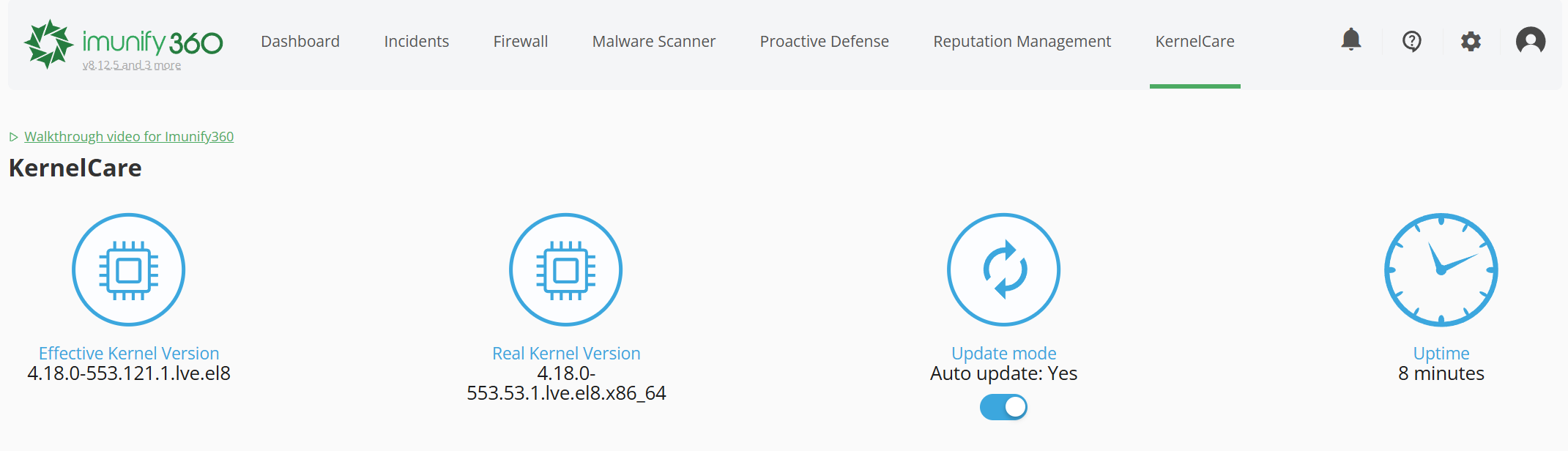
kc_tab

If KernelCare is installed and active, the tab shows:

  • Effective Kernel Version: the patched kernel version active on the server
  • Real Kernel Version: the version the server was last booted with
  • Update mode: toggle for automatic patching
  • Uptime: kernel uptime in days

If the tab prompts you to install instead, continue to Step 2.
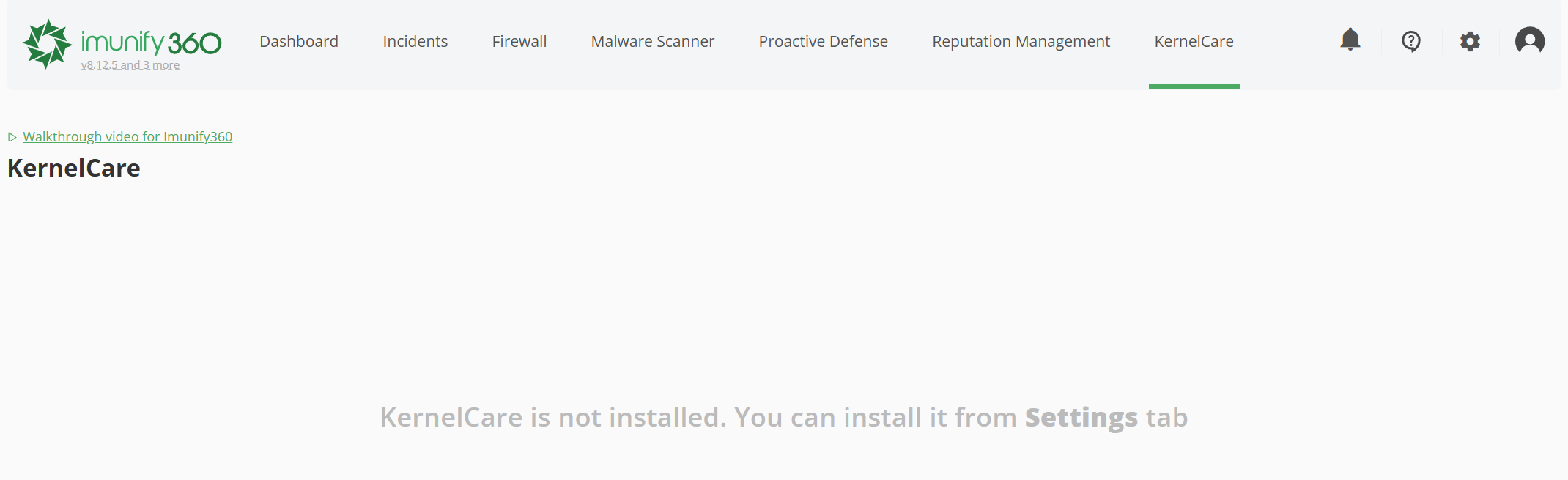
kc_not_installed

You can also check from the command line:

imunify360-agent features status kernelcare

If the response is not_installed, proceed to Step 2.


Step 2: Enable KernelCare

Via the dashboard

  1. Open Imunify360 in the admin dashboard.
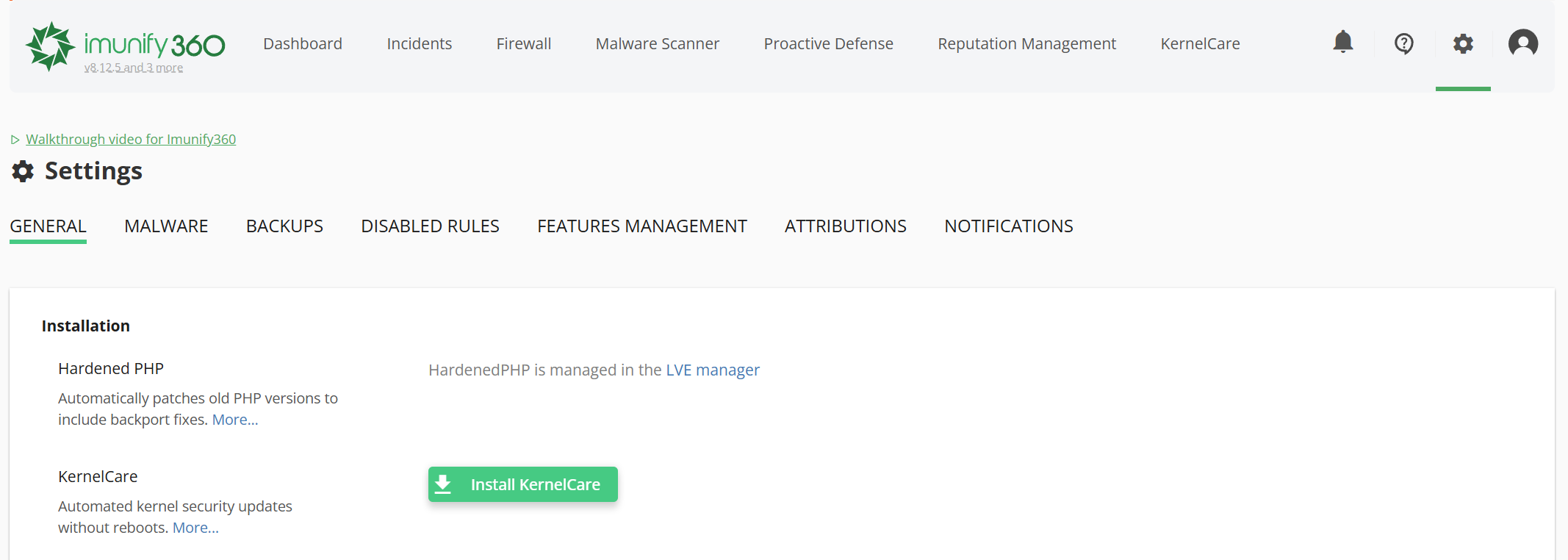
  2. Go to Settings → General → Installation.
  3. Click Install KernelCare.

kc_install

Once the installation completes, navigate to the KernelCare tab in the main menu for status info and to verify update mode.


Via the CLI

If you prefer the command line, run:

imunify360-agent features install kernelcare

Verify status afterward:

imunify360-agent features status kernelcare


What you get once it is enabled

Live patches for Copy Fail, Dirty Frag, Fragnesia, and every future kernel CVE that lands during your Imunify360 subscription. The KernelCare agent on the server checks for new patches every four hours and applies them to the running kernel without a reboot, a maintenance window, or any customer notice.

The Update mode toggle in the KernelCare tab switches automatic patching on or off. For most hosting environments, “Auto update: Yes” is the right setting.

For per-CVE patch coverage detail, run:

kcarectl --patch-info


Patch on autopilot

KernelCare is the live-patching component of your Imunify360 subscription. Already paid for, one toggle away. Enable it once per server, and your kernel patching stops depending on emergency maintenance windows.

For the wider picture on why kernel patching cadence is changing, read our blog post: Three root exploits in two weeks: What’s your patching strategy?

You already have KernelCare in Imunify360. Here's how to enable it.

Three Linux kernel privilege escalations have become public in the past two weeks: Copy Fail (CVE-2026-31431) on April 29, Dirty Frag (CVE-2026-43284 and CVE-2026-43500) on May 7, and Fragnesia (CVE-2026-46300) on May 13. All three turn an unprivileged shell user into root. On shared hosting, any one of them can promote a single compromised customer account into a full-server compromise.

KernelCare patched all three vulnerabilities live, without a reboot. If you run Imunify360, KernelCare is already included in your subscription. Make sure to have it enabled on your servers.

This short guide walks through how to check, and how to enable it if it isn’t.


Step 1: Check if KernelCare is already enabled

In the Imunify360 admin dashboard, open the KernelCare tab from the main menu.

kc_tab

If KernelCare is installed and active, the tab shows:

  • Effective Kernel Version: the patched kernel version active on the server
  • Real Kernel Version: the version the server was last booted with
  • Update mode: toggle for automatic patching
  • Uptime: kernel uptime in days

If the tab prompts you to install instead, continue to Step 2.

kc_not_installed

You can also check from the command line:

imunify360-agent features status kernelcare

If the response is not_installed, proceed to Step 2.


Step 2: Enable KernelCare

Via the dashboard

  1. Open Imunify360 in the admin dashboard.
  2. Go to Settings → General → Installation.
  3. Click Install KernelCare.

kc_install

Once the installation completes, navigate to the KernelCare tab in the main menu for status info and to verify update mode.


Via the CLI

If you prefer the command line, run:

imunify360-agent features install kernelcare

Verify status afterward:

imunify360-agent features status kernelcare


What you get once it is enabled

Live patches for Copy Fail, Dirty Frag, Fragnesia, and every future kernel CVE that lands during your Imunify360 subscription. The KernelCare agent on the server checks for new patches every four hours and applies them to the running kernel without a reboot, a maintenance window, or any customer notice.

The Update mode toggle in the KernelCare tab switches automatic patching on or off. For most hosting environments, “Auto update: Yes” is the right setting.

For per-CVE patch coverage detail, run:

kcarectl --patch-info


Patch on autopilot

KernelCare is the live-patching component of your Imunify360 subscription. Already paid for, one toggle away. Enable it once per server, and your kernel patching stops depending on emergency maintenance windows.

For the wider picture on why kernel patching cadence is changing, read our blog post: Three root exploits in two weeks: What’s your patching strategy?

Subscribe to Imunify security Newsletter